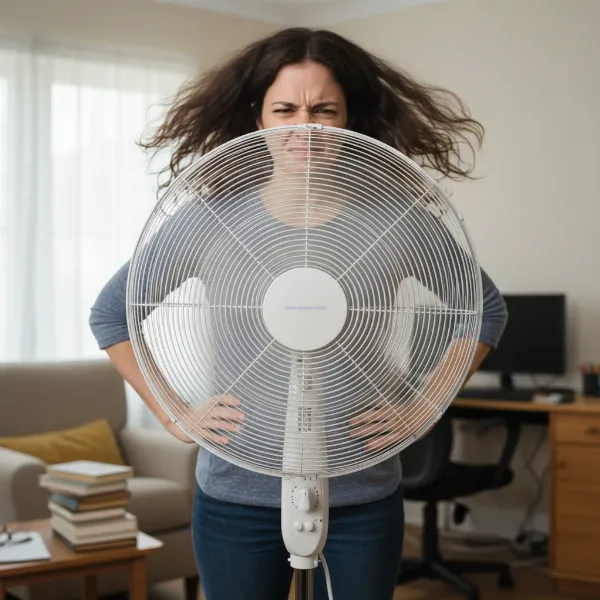
There’s little more frustrating than reaching for your electric fan remote, pressing a button, and getting no response. What was once a convenient control suddenly becomes a useless piece of plastic. Whether it’s a ceiling fan, a pedestal fan, or a modern tower unit, a non-responsive remote can disrupt your comfort and daily routine. Don’t rush to replace your fan or remote just yet; often, the solution is simpler than you think. With over a decade of hands-on experience in electric fan technology, I’m here to guide you through a systematic troubleshooting process to get your fan back under remote control.
Electric Fans: An Overview and Common Types
Electric fans have evolved significantly since their invention, transforming from simple mechanical devices to sophisticated cooling solutions with advanced features. Initially, fans were manually operated or connected directly to a power source, offering basic on/off functionality and speed control. Today, remotes are standard, providing convenience and access to features like timers, oscillation, natural breeze modes, and even light dimming for ceiling fans.
Fans come in various forms, each designed to suit different needs and spaces:
- Ceiling Fans: Mounted overhead, these provide widespread air circulation and often include lighting. They are perhaps the most common type to feature remote controls for multi-functional operation.
- Table Fans: Compact and portable, ideal for personal cooling in smaller areas. Some models incorporate basic remote functions.
- Pedestal Fans: Taller and often adjustable, offering more powerful airflow than table fans, suitable for medium-sized rooms. Remote control enhances their versatility.
- Tower Fans: Slim and vertical, these fans provide a smooth, oscillating airflow and are known for their space-saving design and quiet operation. Remotes are a key feature for these modern units.
- Smart and Bladeless Fans: Representing the cutting edge, these fans often integrate with smart home systems and feature highly responsive remotes, or even app control, for precise environmental management.
The convenience of a remote is undeniable, making it even more perplexing when it stops working. But understanding the common types helps appreciate the universal troubleshooting principles that apply.
Troubleshooting Your Fan Remote: A Step-by-Step Guide
When your fan remote goes silent, it can feel like a mystery. However, most issues stem from a few common culprits. By systematically checking each possibility, you can often diagnose and fix the problem without needing professional help.
Initial Checks: The Simplest Solutions First
Before diving into complex diagnostics, always start with the most straightforward checks. These often resolve the issue quickly and prevent unnecessary effort.
- Batteries: This is the most frequent cause of a dead remote.
- Check Insertion: Ensure batteries are correctly seated according to the polarity markings (+/-). Sometimes a loose battery connection is all it takes.
- Replace with Fresh Ones: Even if you think batteries are new, swap them out for a fresh set. Batteries can lose charge over time, or you might have mistakenly used old ones. Corroded battery terminals due to leakage can also disrupt power. Gently clean any visible corrosion with a cotton swab and rubbing alcohol, or a pencil eraser for stubborn spots.
- Test the Remote’s Signal (Infrared Remotes): For remotes using infrared (IR) technology, you can often test if it’s sending a signal using a smartphone camera. Point the remote’s emitter at your phone’s camera (front or rear, depending on the phone) and press a button. If you see a faint light flashing on your phone screen, the remote is transmitting a signal, indicating the issue might lie with the fan’s receiver. (Note: This doesn’t work for RF remotes).
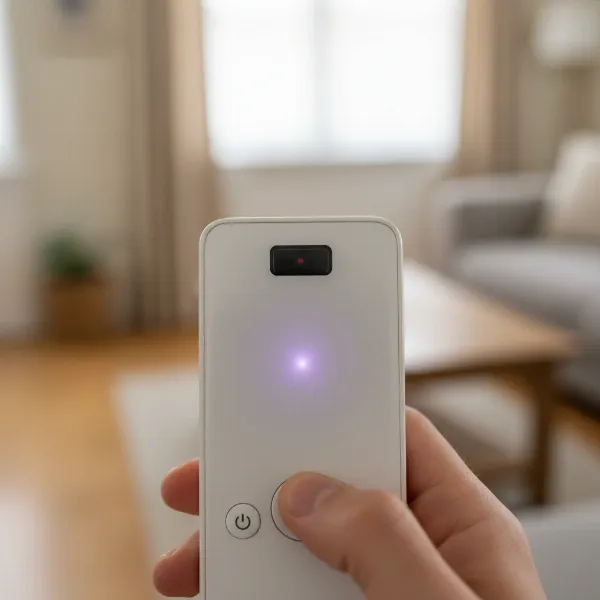 A hand holding a fan remote while pointing it at a smartphone camera to check for an infrared signal.
- Power to the Fan: A remote controls the fan, but the fan itself needs power.
- Wall Switch: Ensure the wall switch connected to your fan is in the “on” position. It’s an easy oversight, especially if someone else has used it.
- Circuit Breaker: If the fan has no power at all (no light, no movement), check your home’s circuit breaker box. The breaker controlling the fan might have tripped. Flip it off, wait a few seconds, then flip it back on.
- Line of Sight/Interference: For IR remotes, a clear path is essential.
- Obstructions: Make sure there are no physical objects blocking the line of sight between your remote and the fan’s receiver (often located in the fan housing or light kit).
- Distance: While remotes have a range, try operating it closer to the fan.
- Interference: Other electronic devices, especially those emitting IR signals, can sometimes interfere. Temporarily move or turn off nearby electronics to see if the remote starts working.
|
Our Picks for the Best Electric fan in 2026
As an Amazon Associate I earn from qualifying purchases.
|
||
| Num | Product | Action |
|---|---|---|
| 1 | XPOWER FC-100S Multipurpose 11 Pro Air Circulator Utility Fan with Oscillating Feature |

|
| 2 | Dreo Fan for Bedroom, 120° Oscillating Standing Fan, Quiet Floor Fan with DC Motor, Pedestal Fan for Room, 9 Speeds, 4 modes, 20dB, 120° Manual Vertical, 37-42" Adjustable Height, 9H Timer, Black |
|
| 3 | Lasko 2520 Oscillating Stand Fan,White 16 Inch |
|
| 4 | Dreo Fan for Bedroom, 120° Oscillating Standing Fans, Quiet Floor Fan with DC Motor, 100ft Pedestal Fans for Room, 9 Speeds, 4 modes, 20dB, 120° Manual Vertical, 37-42" Adjustable Height, 9H Timer |
|
| 5 | 10" Modern Standing Fan for Bedroom, Sleek Oscillating Pedestal Fan, 3-Speed & Height Adjustable Compact Floor Fan for Home Office & Dorm |
|
| 6 | LEVOIT Tower Fan for Bedroom, 25ft/s Velocity Standing Fan with 28dB Quiet for Sleep, Remoter, 12H Timer, 5 Speeds, 4 Modes, 90° Oscillation for Home, Office, Indoor, Bladeless 36 inch, White |
|
| 7 | Viniper Portable Rechargeable Fan, Small Desk Fan : 3 Speeds & about 8-24 Hours Longer Working, 180 Rotation, Portable Desktop Fan Small but Mighty, Strong Wind (White, Light Black Blade)6.2 Inch |
|
| 8 | Amazon Basics Air Circulator Fan, Desk Fan for Bedroom, Home and Office, With 90-Degree Tilt Head, 3 Speed Settings, Lightweight (3 LBS), 35 Watts, Black, 11.1"W x 6.3"D x 10.9"H |
|
| 9 | Amazon Basics 16" Pedestal Fan with Remote, Floor Fan, Standing Fan for Bedroom, Living Room, Office, with 3 Speeds, 3 Modes, Timer, Dual-Layered Blades, Adjustable Height, Tilt Head, 60W, Black |
|
| 10 | Dreo Tower Fan for Bedroom, 25ft/s Velocity Quiet Floor Fan, 90° Oscillating Fans for Indoors with 4 Speeds, 4 Modes, 8H Timer, Standing Fans, Bladeless Fan, Black, Nomad One (DR-HTF007) |
|
Advanced Troubleshooting: Resetting and Syncing
If initial checks don’t yield a solution, the next step involves resetting the communication between the remote and the fan. This often involves power cycling and syncing procedures.
- Power Cycle the Fan: This is a universal fix for many electronic glitches.
- Turn off the power to the fan at the wall switch, or for a more thorough reset, at the circuit breaker.
- Wait for at least 30 seconds to a minute to allow any residual charge to dissipate from the fan’s receiver.
- Turn the power back on.
- Immediately try the remote. Sometimes, this simple reset is enough for the remote and receiver to re-establish communication.
- Reset/Pairing Procedure: Many fan remotes and receivers need to be “paired” or “synced” after a power interruption or battery change. The exact steps vary by manufacturer, so consulting your fan’s user manual is highly recommended. However, a common procedure involves:
- Ensuring power is off at the wall or breaker.
- Turning the power back on.
- Within a short window (e.g., 10-30 seconds), pressing and holding a specific button on the remote (often “Fan Off,” “Light,” or a dedicated “Pair/Sync” button) for several seconds until the fan’s light blinks or the fan makes a sound, indicating successful pairing.
- If your manual is lost, search online for “[Fan Brand] [Model Number] remote pairing instructions.”
- Dip Switches (Frequency Coding): Some older or simpler remote systems use physical “dip switches” to set a unique frequency code between the remote and the fan’s receiver.
- Locate Dip Switches: On the remote, these are usually found inside the battery compartment. On the fan, the receiver with matching switches is typically located within the fan’s canopy (the part that attaches to the ceiling). Always turn off power at the circuit breaker before opening the fan canopy.
- Match Settings: Carefully note the position of the switches (up or down) on both the remote and the receiver. They must be identical. If they are not, or if they have been accidentally bumped, adjust them to match. You can also try changing the dip switch settings on both the remote and receiver to a new, identical pattern to rule out external interference on the original frequency.
- Reassemble: Once matched, replace the remote battery cover and reattach the fan canopy, then restore power.
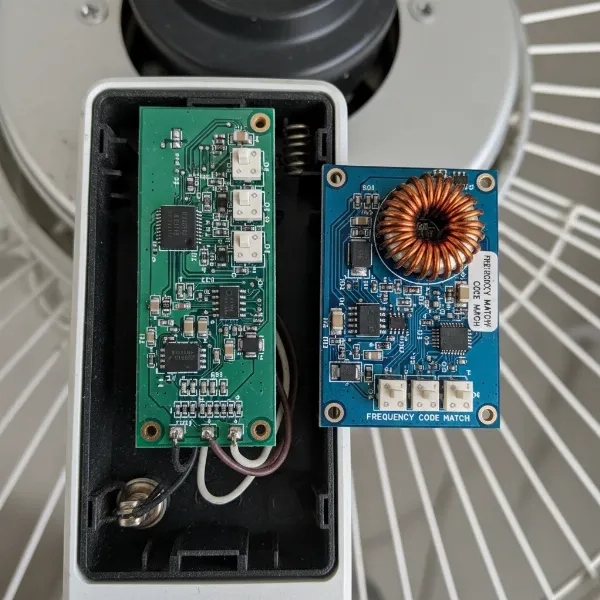 Close-up of a fan remote control and a fan receiver, both showing matching dip switch settings.
Examining the Remote and Receiver
If the above steps haven’t worked, the problem might be hardware-related.
- Cleaning Remote Contacts (for IR remotes): If only some buttons work, or they respond inconsistently, the internal contacts might be dirty.
- Carefully open the remote’s casing (often requires small screwdrivers).
- Use a cotton swab with rubbing alcohol to gently clean the carbon contacts on the circuit board and the conductive pads on the rubber button membrane.
- Allow to dry completely before reassembling.
- Checking for Physical Damage or Corrosion: Visually inspect both the remote’s circuit board and the fan’s receiver (if accessible). Look for:
- Signs of impact damage (cracked casing, loose components).
- Water damage or corrosion (green/white powdery residue).
- Burn marks or discolored components, which could indicate a circuit fault.
- Considering Receiver Failure: The receiver unit inside the fan is essentially a small circuit board that translates the remote’s signals. Like any electronic component, it can fail over time. If you’ve exhausted all other troubleshooting steps and confirmed the remote is transmitting, a faulty receiver is a strong possibility. Replacing the receiver usually requires disassembling the fan canopy and basic electrical knowledge, or the help of an electrician.
Comparing Common Fan Remote Issues and Their Solutions
Understanding the symptoms can help pinpoint the problem more quickly. Here’s a quick comparison of common issues and their typical solutions:
| Symptom | Likely Cause(s) | Primary Solutions |
|---|---|---|
| Remote totally unresponsive | Dead batteries, no power to fan, remote failure | Replace batteries, check circuit breaker/wall switch, test remote signal, consider new remote. |
| Intermittent response | Weak batteries, interference, loose connection, minor pairing issue | Replace batteries, remove obstructions, power cycle fan, re-pair remote. |
| Only some buttons work | Dirty remote contacts, internal remote damage | Clean remote contacts, consider replacing remote. |
| Fan lights work, but fan doesn’t respond | Pairing issue, receiver failure, dip switch mismatch | Re-pair remote, check dip switches, consider receiver replacement. |
| Remote indicator light doesn’t blink | Dead batteries, remote failure | Replace batteries, test remote signal, consider new remote. |
Tips for Fan Remote Longevity and Maintenance
A little preventative care can save you a lot of troubleshooting headaches in the long run.
Proper Battery Care
- Use Quality Batteries: Invest in reputable brands for longer life and to reduce the risk of leakage.
- Replace Regularly: Don’t wait until the remote stops working completely. Replace batteries annually or bi-annually, especially if the remote is used frequently.
- Avoid Leaks: If you won’t be using the fan for an extended period (e.g., during winter), remove the batteries to prevent corrosive leakage that can permanently damage the remote.
Keeping Your Remote Clean and Safe
- Avoid Spills and Moisture: Keep the remote away from liquids. Accidental spills are a common cause of remote failure.
- Prevent Drops: A hard fall can dislodge internal components or crack the circuit board. Store your remote in a safe, designated spot.
- Dust and Debris: Periodically wipe down your remote to prevent dust and grime from accumulating, especially in button crevices.
When to Seek Professional Help or Replace
While many remote issues are DIY-fixable, there are times when it’s best to call in an expert or opt for replacement.
- If you’ve tried all troubleshooting steps and the remote or fan still doesn’t respond.
- If dealing with electrical components inside the fan canopy makes you uncomfortable or if you lack the necessary tools and knowledge. Safety first!
- If the fan or remote is very old, replacement might be more cost-effective than repair, especially if parts are hard to find.
Where to Find Reliable Replacement Fan Remotes
If your troubleshooting journey leads to the conclusion that a replacement is necessary, finding the right one is crucial.
- Manufacturer Websites: The most reliable source is often the original fan manufacturer’s website or their authorized parts dealers. This ensures compatibility.
- Reputable Online Retailers: Websites specializing in home improvement or specific fan brands often carry replacement remotes and receivers. Always double-check the model numbers.
- Local Appliance Stores/Electrical Suppliers: Some local stores might stock universal remotes or be able to order specific replacements.
- Universal Remotes: For some fan types, a universal remote might work, but compatibility can be hit-or-miss. Check reviews and specifications carefully.
Always match the model number of your fan and the original remote if possible. If you’re replacing the receiver, ensure it’s compatible with your fan’s motor and wiring.
Fan Remote Buying Guide
Choosing a new fan remote, or even a replacement receiver, requires a bit of consideration to ensure you get the right product for your needs.
What is your budget?
Remote prices can vary significantly. Simple replacement remotes are usually affordable, while advanced universal remotes or integrated remote/receiver kits for smart fans can be more expensive. Determine what you’re willing to spend, keeping in mind the cost-effectiveness compared to replacing the entire fan.
What type of fan do you have?
The type of fan (ceiling, pedestal, tower) directly impacts the remote you need. Ceiling fan remotes often control both fan speed and light, and may require specific pairing. Tower and pedestal fans usually have simpler remotes that might be easier to replace with a generic or universal option if the original isn’t available.
You need what features?
Consider if you need all the original features (e.g., multiple fan speeds, light dimming, timer, reverse function). If your old remote offered more than you used, a simpler, more affordable replacement might suffice. Conversely, if you rely on specific functions, ensure your new remote or receiver supports them fully.
Conclusion
A malfunctioning electric fan remote doesn’t have to be a major setback. By following a methodical troubleshooting approach—starting with simple battery checks, moving to power cycles and pairing, and finally examining hardware—you can resolve most common issues. Remember to refer to your fan’s manual for specific instructions, especially for pairing or dip switch adjustments. With a little patience and these practical steps, you can often restore full control to your fingertips, ensuring your electric fan continues to provide comfort efficiently.
What steps have you found most effective when your fan remote stops working?
Frequently Asked Questions
Why does my fan remote suddenly stop working?
A fan remote often stops working due to dead or weak batteries, a loss of power to the fan itself, or a temporary communication glitch between the remote and the fan’s receiver. Interference from other electronic devices or a need to re-pair the remote can also be common culprits.
How do I reset my fan remote to sync with the fan?
To reset and sync your fan remote, first turn off the power to the fan at the wall switch or circuit breaker for about 30-60 seconds. Then, restore power and, within a specific timeframe (often 10-30 seconds), press and hold a designated button on the remote (e.g., “Fan Off” or a “Sync” button) until the fan’s light blinks or it responds. Consult your fan’s manual for precise instructions.
Can a universal remote work for my electric fan?
Some universal remotes are designed to control certain Electric Fans, particularly those with basic functions. However, compatibility is not guaranteed for all fan brands and models, especially those with unique pairing protocols or advanced features like light dimming. Always check the universal remote’s compatibility list or reviews before purchasing.
How do I clean a sticky fan remote?
To clean a sticky fan remote, first remove the batteries. You can gently wipe the exterior with a damp cloth (not wet). For sticky buttons, you might need to carefully open the remote’s casing and clean the internal button contacts and rubber membrane with a cotton swab lightly dampened with rubbing alcohol. Ensure all parts are completely dry before reassembling.
What are dip switches on a fan remote, and how do they work?
Dip switches are small, manual switches found inside some fan remotes and their corresponding receivers (often in the fan canopy). They are used to set a unique frequency code, preventing interference from other remotes. For the remote to control the fan, the dip switch settings on both the remote and the receiver must match perfectly.
When should I replace my fan remote instead of troubleshooting?
You should consider replacing your fan remote if you’ve exhausted all troubleshooting steps (fresh batteries, power cycling, re-pairing, checking dip switches, cleaning contacts) and the remote still doesn’t work. Physical damage, corrosion, or if the remote’s internal components appear faulty are also strong indicators for replacement.